
Source review: September 18, 2026. Tenant validation pending.
Page tools and document details
Immediate response
First 10 minutes
Stop active access without destroying the evidence you need to understand the incident. Use a separate, trusted administrator account.
Use this response for confirmed or credible account compromise. If you only have an unexplained sign-in or failed attempt, start with Suspicious Sign-ins. Active attacker access or harm needs prompt, proportionate containment while investigation continues.
Checklist privacy: selections are stored only for this browser session. They are not sent to CODWEBPRO or saved as incident evidence.
Know what your tenant can do
Start with Microsoft 365 Business Standard. Use the fallback in this SOP when a premium signal or response tool is not licensed, and activate only the least role needed for the action.
| Capability | Business Standard | Practical boundary | Microsoft source |
|---|---|---|---|
| Entra sign-in and audit logs | Limited | Portal view and CSV export are available through Entra ID Free, with 7-day retention. P1 or P2 raises retention to 30 days and is required for programmatic sign-in-log access through Microsoft Graph. | Retention |
| Purview Audit Standard | Available after activation | Business Standard includes search, CSV export, Search-UnifiedAuditLog and 180-day standard retention, but unified audit ingestion is not enabled by default for SMB plans. Enable it before an incident; activation does not recover earlier events. | Enable auditing |
| Mailbox auditing | Available | On by default for user, delegate and administrator mailbox operations. Investigate through Purview Audit. | Mailbox auditing |
| MailItemsAccessed audit events | Add-on | Business Standard lacks the eligible E3/E5-class audit entitlement. Fall back to general mailbox audit events and message trace when this event is unavailable. | MailItemsAccessed investigation |
| Message trace | Available | Exchange Online keeps trace data for 90 days. Summary queries cover up to 10 days at a time; wider intervals require a downloadable report. | Message trace FAQ |
| Rules, forwarding and delegates | Available | Exchange admin center and Exchange Online PowerShell are included. RBAC still controls who may inspect or change them. | Exchange Online |
| Disable, reset and revoke sessions | Available | Cloud-account disable, cloud-password reset, authentication-method cleanup and refresh-token revocation are available. Hybrid writeback is separate. | Revoke access |
| Identity Protection risk | Limited | Basic risk visibility is limited. Full risk investigation and risk-based remediation require Entra ID P2. For a Graph read, check the specific endpoint's license requirement and returned detail. | Identity Protection |
| Conditional Access | Add-on | Standard policies require Entra ID P1. User-risk and sign-in-risk policies require P2. | Plan Conditional Access |
| Threat Explorer and automated email remediation | Add-on | Threat Explorer, campaigns and automated investigation and response require Defender for Office 365 Plan 2. | Defender for Office 365 |
| Purview eDiscovery cases, search and purge | Add-on | Do not assume Business Standard is sufficient. Current Purview case guidance names Microsoft 365 Enterprise E3 or E5 for administrators and case users. Check the exact feature and user entitlements against the current service description before proposing a license change. Use message trace for baseline investigation; prefer Defender for Office 365 Plan 2 for operational malicious-email remediation. | eDiscovery requirements Purview service description |
| Hybrid password writeback | Add-on | Writing a cloud reset back to on-premises Active Directory requires Entra ID P1, P2 or another eligible plan. | SSPR licensing |
| Endpoint isolation and full MDM response | Add-on | Business Standard does not include Intune or Defender for Business. Escalate device actions to the licensed endpoint owner. | Plan comparison |
Run Get-AdminAuditLogConfig | Format-List UnifiedAuditLogIngestionEnabled in Exchange Online PowerShell. If the result is False, an operator holding the Audit Logs role in Exchange Online must run Set-AdminAuditLogConfig -UnifiedAuditLogIngestionEnabled $true. Purview searches remain empty until ingestion is enabled, and only future activity is collected.
Use the Exchange Online session: the Security & Compliance session reports False regardless of status. Activation can take 60 minutes; searchable events can take several hours.
Least-privilege action map
Activate roles just in time where possible. For delegated Microsoft Graph work, the operator needs both the listed OAuth scope and the supported Entra role. Exchange roles can be customized, so verify the exact cmdlet and parameter assignment in the tenant.
| Action or command | Minimum portal or RBAC role | Graph or Exchange permission | Business Standard boundary | Microsoft source |
|---|---|---|---|---|
| Read user profile, groups, devices and assigned roles | Directory Readers for directory views. Reports Reader is needed only when opening sign-in or audit logs. | User.Read.All, GroupMember.Read.All, Device.Read.All and RoleManagement.Read.Directory. | Available. | Entra roles |
| View risky users and risk detections | Security Reader. | IdentityRiskyUser.Read.All for risky users; IdentityRiskEvent.Read.All for detections. | Limited; full investigation requires P2. Check the requested endpoint and actual returned detail. | Risky users Risk detections |
| Confirm compromised or dismiss risk | Portal: Security Operator. Graph: Security Administrator. | IdentityRiskyUser.ReadWrite.All. | Add-on; requires P2. | Remediate risk Graph confirm Graph dismiss |
| View and export sign-in logs | Reports Reader. | AuditLog.Read.All for Get-MgAuditLogSignIn. | Portal and CSV export are available for 7 days. Get-MgAuditLogSignIn and other Graph sign-in-log access require Entra ID P1 or P2. | Download logs |
Connect-MgGraph and Update-MgUser -AccountEnabled:$false | User Administrator for a supported non-admin; Privileged Authentication Administrator (PAA) for administrator targets, subject to role hierarchy. | User.EnableDisableAccount.All + User.Read.All. Module: Microsoft.Graph.Users. | Available; synchronized users must be disabled in the authoritative source. | Update user |
Revoke-MgUserSignInSession | Helpdesk Administrator for supported non-admin targets; Privileged Authentication Administrator (PAA) for privileged targets. Check the target role hierarchy. | User.RevokeSessions.All. Module: Microsoft.Graph.Users.Actions. | Available; revocation can take several minutes and external-user sessions belong to the home tenant. | Revoke sessions API Role permissions |
| Reset password | Portal: Password Administrator for supported non-admin targets. Graph passwordProfile update: User Administrator for non-admins. PAA covers administrator targets, subject to role hierarchy. | User-PasswordProfile.ReadWrite.All for Graph. | Available for cloud users; hybrid writeback is an add-on. | Reset password Graph password update |
| Review or remove authentication methods; require MFA re-registration | Authentication Administrator for non-admins; PAA for administrators. | Use the chosen method’s API and check whether the target is the signed-in user or another user. For example, phone-method deletion lists UserAuthMethod-Phone.ReadWrite. Portal re-registration combines several actions. | Available. | Manage methods Phone-method API |
| Disable an Entra device | Cloud Device Administrator. | Device.ReadWrite.All for Graph. | Available; not the same as endpoint isolation. | Emergency access revocation |
| Isolate an endpoint or approve a response | Defender unified RBAC Response (manage), or legacy Security Operator. | Defender RBAC, not a Graph scope. | Add-on; requires a licensed Defender endpoint workload. | Defender permissions |
| Disable a malicious enterprise application or service principal | Cloud Application Administrator. | Application.ReadWrite.All for Graph. | Available; obtain approval before tenant-wide impact. | Enterprise app permissions |
Verify or enable unified audit ingestion; Get-AdminAuditLogConfig / Set-AdminAuditLogConfig | Exchange Online Audit Logs role to enable or disable auditing. | Exchange Online PowerShell. Format-List is local and adds no tenant permission. | Required preflight for Business Standard. Enabling is not retroactive. | Enable auditing |
Search or export Purview Audit; Search-UnifiedAuditLog | Purview Audit Reader / View-Only Audit Logs. | Exchange View-Only Audit Logs; module ExchangeOnlineManagement. | Available through Audit Standard after unified audit ingestion is enabled. | Audit search |
| Run message trace | Custom Exchange role group with the Message Tracking management role. | Exchange RBAC; no Graph scope. | Available for 90 days. | Exchange RBAC |
| Review and revoke application consent | Directory Readers for review; Cloud Application Administrator for revocation; Privileged Role Administrator when Microsoft Graph application permissions are involved. | Read delegated grants: Directory.Read.All. Read app-role assignments: Application.Read.All. Revoke only with the appropriate DelegatedPermissionGrant.ReadWrite.All or AppRoleAssignment.ReadWrite.All. | Available; password reset does not remove grants or immediately invalidate existing access tokens. | Manage permissions Read delegated grants Read app-role assignments |
Connect-ExchangeOnline | The operator must hold the scoped Exchange role used by each later cmdlet. | Exchange RBAC; connection alone grants nothing. Module: ExchangeOnlineManagement. | Available. | Connect to Exchange Online |
Get-InboxRule -IncludeHidden + Format-List | Recipient-scoped custom Exchange role containing Get-InboxRule. Global Reader and View-Only Organization Management are explicitly insufficient. | Exchange RBAC. Format-List is local and needs no cloud permission. | Available. | Get-InboxRule |
Get-Mailbox forwarding properties + Format-List | View-Only Recipients. | Exchange RBAC. Format-List adds no permission. | Available. | Exchange roles |
Get-MailboxPermission + Where-Object + Format-Table | View-Only Recipients. | Exchange RBAC. Where-Object and Format-Table run locally. | Available. | Get-MailboxPermission |
Get-RecipientPermission; Get-Mailbox ... GrantSendOnBehalfTo | View-Only Recipients. | Exchange RBAC; no Graph scope. | Available. | Get-RecipientPermission |
| Remove malicious rules, forwarding or delegates | Recipient-scoped custom role containing only the required remove/set cmdlets; Mail Recipients is the broader standard baseline. | Exchange RBAC. Validate each cmdlet and parameter with Get-ManagementRole. | Available. | Find cmdlet permissions |
| Remediate malicious email in Explorer or AIR | Unified RBAC Email & collaboration advanced actions (manage), or legacy custom role with Search and Purge. | Defender RBAC; no Graph scope. | Add-on; requires Defender for Office 365 Plan 2. | Email remediation |
| Remove a secured user from Restricted entities | Unified RBAC Core Security settings (manage), or legacy Security Administrator. | Defender RBAC. | Available through Exchange Online Protection; do this only after control is restored. | Restricted users |
| Restore a user's OneDrive | User for own drive; SharePoint Administrator or site collection administrator for another user. | SharePoint/OneDrive permissions. | Available for the previous 30 days. | Restore OneDrive |
| Restore a SharePoint or Teams document library | Site owner or SharePoint Administrator. | SharePoint site permissions. | Available for the previous 30 days. | Restore a library |
| Configure phishing-resistant authentication methods | Authentication Policy Administrator. | Policy.ReadWrite.AuthenticationMethod. | Limited; registration can be available, but Conditional Access authentication-strength enforcement requires P1. | Deploy phishing-resistant auth |
| Create Conditional Access risk or legacy-authentication policy | Conditional Access Administrator. | Policy.ReadWrite.ConditionalAccess. | Add-on; P1 for standard policy, P2 for risk conditions. | Block legacy authentication |
| Run the Compromised Accounts self-help diagnostic | Any Microsoft 365 administrator role. | No Graph or Exchange permission is documented; the diagnostic runs in the Microsoft 365 admin center. | Available as an optional checkpoint, except in GCC High, DoD and Microsoft 365 operated by 21Vianet. | Diagnostic roles |
Exchange verification: run Get-ManagementRole -Cmdlet <Cmdlet> -CmdletParameters <Parameter>, then inspect Get-ManagementRoleAssignment. This is more reliable than assuming a broad administrator role in a customized tenant.
Know when to start the SOP
Start this procedure when one credible signal suggests that another person or application may control the identity. One signal is enough to investigate. Related credible signals increase urgency; record suspected compromise until evidence supports a confirmed classification.
User signals
Unexpected MFA prompts, password changes, lockout, missing mail, unknown Sent Items, unfamiliar rules, forwarding, signatures or contacts.
Security signals
Risky user or sign-in detection, impossible travel, unfamiliar IP or device, malware alert, unusual consent grant, mass download or suspicious outbound email.
What to do
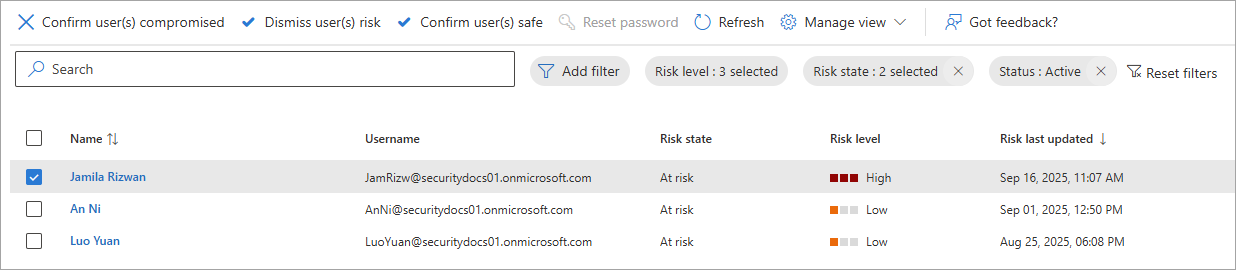
Microsoft Entra admin center → Entra ID → Protection → Identity Protection → Risky users → affected user
Complete when
- The trigger and its UTC timestamp are preserved.
- The user response or inability to reach the user is recorded.
- The incident is classified as suspected, confirmed or safe with a reason.
Set priority and initial scope
Triage answers three questions: Is the attack still active? How sensitive is the identity? Is the problem limited to one account?
What to do
Highest priority
Global or privileged administrator, emergency access, service identity, executive or finance mailbox, tenant-wide application consent, active payment diversion or confirmed exfiltration.
Broaden the incident
Do not keep this as a single-user case when the same infrastructure, message, application, device or attacker behavior appears elsewhere.
Microsoft Entra admin center → Entra ID → Users → All users → affected user → Overview, Assigned roles, Groups, Devices, Authentication methods and Sign-in logs
Roles and licensing to expect
Reports Reader can review sign-ins. Security Reader or Security Operator can investigate standard risky-user information. Identity Protection detail and automated risk remediation require Microsoft Entra ID P2 or Microsoft Entra Suite. Privileged identities require appropriately privileged responders.
Complete when
- Severity, incident owner and investigation window are recorded.
- Privileged and high-value access is understood.
- A first decision has been made on single-user or broader scope.
Stop access and further damage
Containment interrupts new access. It does not prove that every token, application session, device or persistence mechanism is gone.
What to do
Entra ID → Users → All users → user → Account status → Edit → clear Account enabled → Save → Overview → Revoke sessions
Microsoft Graph PowerShell containment
Disable the identity and revoke its refresh-token sessionsDisruptive example for an authorized incident responder. Check target sensitivity, delegated roles and business impact first. For synchronized or external identities, use the authority-specific steps above. Source-reviewed; no tenant execution test has been performed.
# Cloud member users only. Run after incident authorization and evidence capture.
$ErrorActionPreference = 'Stop'
Import-Module Microsoft.Graph.Users
Import-Module Microsoft.Graph.Users.Actions
$tenantId = [guid](Read-Host 'Tenant ID (GUID)')
if ($tenantId -eq [guid]::Empty) { throw 'A tenant ID is required.' }
$targetUpn = (Read-Host 'Exact user principal name to disable').Trim()
if (-not $targetUpn) { throw 'A target user is required.' }
$connected = $false
try {
  Connect-MgGraph -TenantId $tenantId -ContextScope Process -Scopes 'User.EnableDisableAccount.All','User.Read.All','User.RevokeSessions.All'
  $connected = $true
  if ([guid](Get-MgContext).TenantId -ne $tenantId) { throw 'Wrong tenant context.' }
  $target = Get-MgUser -UserId $targetUpn -Property Id,UserPrincipalName,UserType,OnPremisesSyncEnabled,AccountEnabled
  if (-not $target.Id -or $target.UserPrincipalName -ne $targetUpn -or $target.UserType -ne 'Member' -or $target.OnPremisesSyncEnabled) {
    throw 'Stop: target mismatch, guest or synchronized account. Use the appropriate workflow.'
  }
  $target | Select-Object Id,UserPrincipalName,AccountEnabled
  if ((Read-Host 'Confirm authorized action by typing the exact UPN again') -cne $target.UserPrincipalName) {
    throw 'Confirmation did not match.'
  }
  Update-MgUser -UserId $target.Id -AccountEnabled:$false
  $state = Get-MgUser -UserId $target.Id -Property AccountEnabled
  if ($state.AccountEnabled -ne $false) { throw 'Disable was not verified. Escalate before continuing.' }
  $revoked = Revoke-MgUserSignInSession -UserId $target.Id
  if ($revoked -ne $true) { throw 'Account disabled, but session revocation was not confirmed. Keep it blocked and verify in the portal.' }
} finally {
  if ($connected) { Disconnect-MgGraph }
}
# Record UTC time and action results in the incident. Existing app sessions may remain.Save as evidence
Account-enabled state, session-revocation time and result, risk state, device action, administrator identity and any Graph response.
Do not do this
Do not disable emergency access without authorization. Do not remove suspicious configuration before recording it unless the ongoing harm makes immediate removal necessary.
Complete when
- The identity is disabled in its authoritative source.
- Refresh-token sessions are revoked.
- Known compromised devices and independent application access have an owner and containment action.
Build the timeline and blast radius
Work from the identity outward. First decide what the suspicious sign-in means, then investigate persistence, email, applications, devices and data.
Investigate Suspicious Sign-insPreserve the exact event, compare interactive and non-interactive activity, assess authentication and Conditional Access, then return here with a documented decision.What to do
Mailbox persistence commands
Inbox rules, including hidden rulesGet-InboxRule -Mailbox <UPN> -IncludeHidden |
Format-List Name,Enabled,Description,RedirectTo,ForwardTo,ForwardAsAttachmentTo,DeleteMessage,MoveToFolder,IdentityGet-Mailbox -Identity <UPN> |
Format-List ForwardingAddress,ForwardingSmtpAddress,DeliverToMailboxAndForwardGet-MailboxPermission <UPN> |
Where-Object {$_.AccessRights -like "Full*"} |
Format-Table User,Deny,IsInherited,AccessRights -Auto
Get-RecipientPermission -Identity <UPN>
Get-Mailbox -Identity <UPN> | Format-List GrantSendOnBehalfToConnect-ExchangeOnline. View-Only Recipients covers forwarding and delegate reads, but not Get-InboxRule. Use a recipient-scoped custom role containing only the required cmdlet. Confirm the exact tenant assignment with Get-ManagementRole.Audit and blast-radius paths
Microsoft Purview portal → Solutions → Audit → affected user and UTC incident window
Exchange admin center → Mail flow → Message trace → sender is the affected mailbox. Use the message-trace guide for time windows and result interpretation.
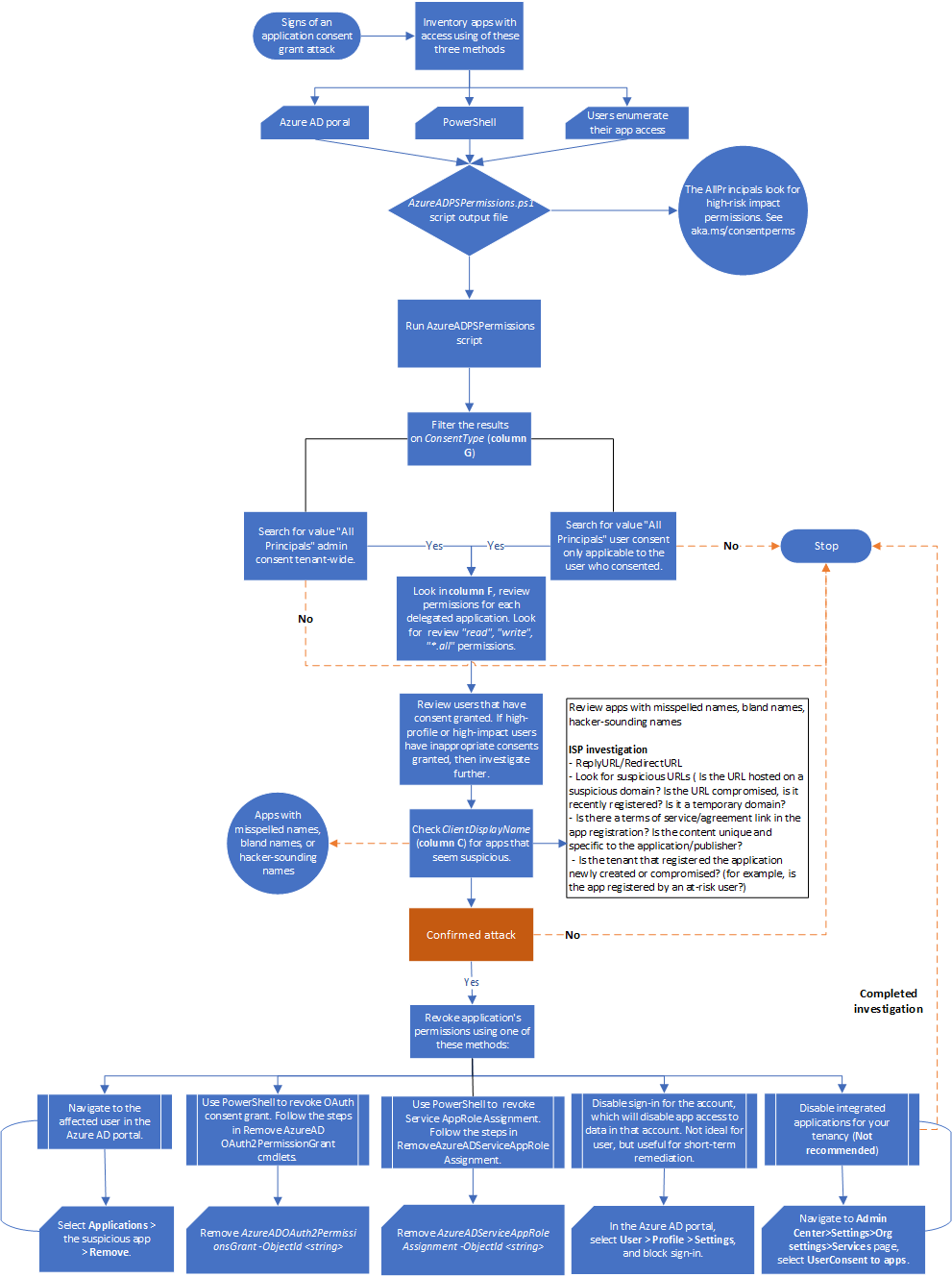
Entra ID → Users → All users → affected user → Applications, then Entra ID → Enterprise apps → All applications → application → Permissions
MailItemsAccessed: a Sync event can mean the entire synchronized folder was exposed. A Bind event can identify individual messages through InternetMessageId. If evidence cannot bound exposure, assume exposure and escalate.
Complete when
- The suspicious sign-in SOP has a recorded decision and preserved exports.
- The first and last suspicious events are identified or explicitly marked unknown.
- Entry method and persistence are identified or documented as unresolved.
- Affected identities, messages, files, applications, devices and external recipients are listed.
Remove persistence and restore trust
Remediate only after preserving the relevant evidence. Replace compromised credentials, remove every confirmed persistence mechanism, repair affected content, then prove that the user can return safely.
What to do
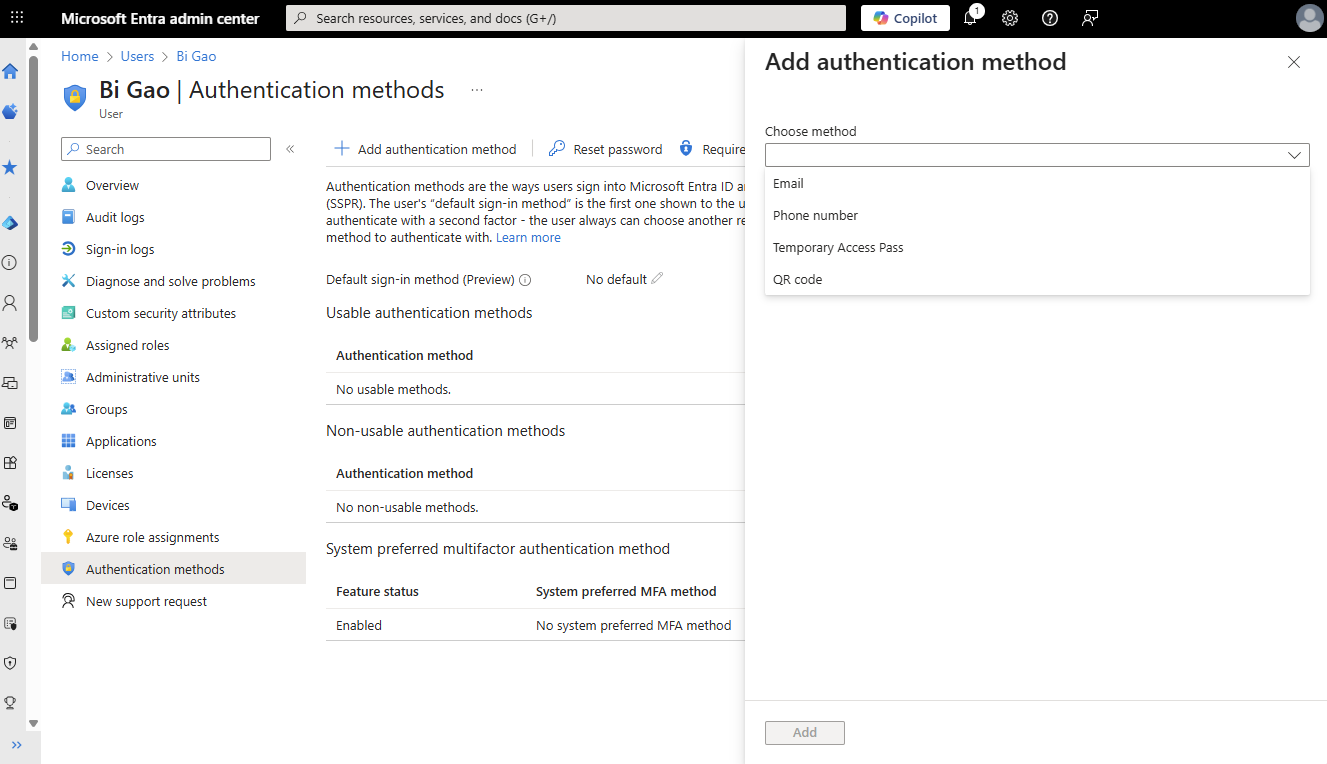
Entra ID → Users → All users → user → Reset password, then Authentication methods → remove unknown methods → Require re-register multifactor authentication → Revoke sessions
Mailbox and application cleanup paths
Exchange admin center → Recipients → Mailboxes → user → Mailbox → Email forwarding → Manage email forwarding
Exchange admin center → Recipients → Mailboxes → user → Mailbox delegation → review Read and manage, Send As and Send on behalf
Entra ID → Users → All users → user → Applications → suspicious application → Remove
Entra ID → Enterprise apps → All applications → application → Permissions → revoke the confirmed malicious grant
User consent cannot always be revoked from the Enterprise Applications portal. Use the Microsoft Graph or PowerShell method in the linked Microsoft article when the portal does not offer revocation.
Email and file remediation
Microsoft Defender portal → Explorer → select confirmed malicious messages → take remediation action → Actions & Submissions → Action center → History
Prefer Soft delete when recoverability matters. Hard delete needs stronger permissions and is harder to reverse. Explorer remediation requires Microsoft Defender for Office 365 Plan 2.
OneDrive website → Settings → Restore your OneDrive → select a point before the confirmed malicious activity
Library → Settings → Restore this library. In Teams, open the channel Files tab in SharePoint first.
OneDrive and shared-library restore cover the previous 30 days and can undo legitimate changes after the chosen point. Preserve evidence, contain the cause and use the narrowest recovery that covers confirmed damage. For an individual file, first follow the file recovery guide.
After containment and evidence capture, run the Compromised Accounts diagnostic for additional findings and troubleshooting guidance. It is optional and is not a substitute for containment, evidence preservation or the investigation steps above. Running it again after remediation can help validate the result.
Access and availability: the documented minimum is any Microsoft 365 administrator role. Use the least privileged admin role already authorized for the incident. The diagnostic is unavailable in GCC High, DoD and Microsoft 365 operated by 21Vianet.
See the official compromised-account diagnostic entry and diagnostic data and privacy details. Microsoft states that customer content such as email, files and chats is not accessed and diagnostic data is removed when the test finishes.
Validate the sign-in
Recognized device, application and network; successful required MFA; satisfaction of applicable Conditional Access controls; and no unexplained non-interactive activity after revocation.
Validate the service
Test inbound and outbound mail. Remove a restricted-sender block only after the account is secured. Confirm remediated messages and files by spot-checking.
Complete when
- Compromised credentials and authentication methods are replaced.
- All confirmed persistence is removed and validated.
- Malicious email and data changes have a completed remediation result.
- A trusted sign-in succeeds and post-remediation monitoring is clean.
For a single missing or overwritten file, use the OneDrive file recovery guide first. Confirm the owner, available history and current damage before a broad restore; legitimate later changes may also be undone.
Controlled return to service
- Complete evidence capture, credential and MFA cleanup, persistence removal and trusted-device checks while the account remains blocked.
- The incident owner authorizes a controlled re-enable. Record the administrator and UTC time; retain a way to block access again.
- From the trusted device, test sign-in, the required MFA and any configured Conditional Access controls. Verify affected workloads and monitor both interactive and non-interactive activity.
- If unexplained access or persistence returns, block the account, revoke sessions and reopen the investigation. Remove a restricted-sender block only after the account is secure.
Reduce the chance of recurrence
Prevention is part of incident closure. Turn the confirmed entry method and control gaps into assigned changes, then validate those changes before enforcement.
What to do
Risk policy baseline
User risk High: require risk remediation. Sign-in risk Medium and High: require an approved authentication strength or MFA. Review report-only results first.
Authentication baseline
Prefer passkeys or FIDO2, Windows Hello for Business or certificate-based authentication for high-value identities. Disable legacy authentication.
Entra ID → Conditional Access → Policies → New policy → all users except emergency access → all resources → Conditions → Client apps → Exchange ActiveSync and Other clients → Grant → Block → Report-only
Complete when
- The confirmed entry method has a prevention control or accepted residual risk.
- Report-only impact has been reviewed before enforcement.
- Emergency access remains usable and target users have suitable authentication methods.
- Every improvement has an owner, due date and validation test.
Create a defensible incident record
Evidence should let another responder reconstruct what happened, what changed and why the incident was closed. Keep original exports unchanged and perform analysis on copies.
What to preserve
Entra ID → Monitoring & health → Sign-in logs → set user and UTC filters → Download → export interactive and non-interactive records separately
Microsoft Purview portal → Solutions → Audit → affected identity and UTC incident window → export results
Copyable evidence record
Incident ID:
Incident owner:
Affected identity:
Reported at (UTC):
Trigger and source:
User verification method and statement:
First suspicious event (UTC):
Last suspicious event (UTC):
Suspected or confirmed entry method:
Containment actions, operator and time:
Sign-in export filenames and filters:
Audit export filenames and filters:
Mailbox persistence found:
Application consent found:
Affected users, messages, files, apps and devices:
Remediation actions and validation:
Residual risk:
Escalation and notification decision:
Prevention actions, owners and due dates:
Closed by and closed at (UTC):
Complete when
- Original evidence is preserved and analysis was performed on copies.
- Every important action includes the operator, UTC time and result.
- The record states what could not be determined and why.
- Evidence location and access are known to the incident owner.
Assign decisions and close deliberately
One incident commander owns the timeline and closure. Technical work can be delegated, but every decision, handoff and unresolved risk must remain visible in the incident record.
Incident commander / SecOps
Severity, coordination, timeline, blast radius, approvals, communications and closure.
Identity
Account state, sessions, password, MFA, roles, devices, Conditional Access and risk.
Exchange / Messaging
Rules, forwarding, delegates, message trace, malicious email and restricted-sender state.
Application / Cloud security
OAuth grants, enterprise applications, service principals and tenant-wide consent.
Endpoint and data owners
Device isolation, malware response, SharePoint, OneDrive, Teams, Power Platform and restoration.
Legal, privacy and business
Data-exposure assessment, notification duties, fraud response and business-impact decisions.
Escalate immediately when
Closure gate
Complete when
- No critical response action is unowned.
- The affected user and service owner confirm expected access and service behavior.
- Residual risk and notification decisions are recorded.
- The incident commander has approved closure.