
Source review: September 18, 2026. Tenant validation pending.
Page tools and document details
Immediate response
First 10 minutes
Preserve the exact event before deciding whether it is harmless, a technical failure, or an account compromise.
Checklist privacy: selections stay in this browser session. They are not incident evidence.
Know which evidence is available
Microsoft 365 Business Standard can investigate recent sign-ins in the portal, but retention and advanced risk features depend on Entra licensing. Never treat a missing premium signal as proof that the activity is safe.
| Capability | Business Standard | Practical boundary | Microsoft source |
|---|---|---|---|
| Sign-in logs in the Entra portal | Available | View, filter and download recent interactive and non-interactive user sign-ins. | Access activity logs |
| Built-in retention | 7 days | Entra ID Free keeps sign-in logs for 7 days. P1 and P2 keep them for 30 days. Upgrading does not restore older data. | Retention |
| CSV and JSON export | Available | Export is available in all editions. Filter first; one download contains at most 100,000 records and uses UTC. | Download logs |
| Microsoft Graph and PowerShell sign-in queries | Add-on | Programmatic sign-in-log access requires Entra ID P1 or P2 plus AuditLog.Read.All. | signIn resource |
| Risky sign-ins and risky users | Limited | Free and P1 show limited reports; P2 or Entra Suite provides full details and remediation. Risky sign-ins are retained for 7 days on Free, 30 days on P1 and 90 days on P2. | Risk retention |
| Confirm safe, confirm compromised or dismiss risk | Add-on | Full manual risk actions require P2 or Entra Suite. Do not dismiss a genuine compromise. | Remediate risk |
| Sign-in diagnostic | Available | Useful for failed or interrupted sign-ins. It explains authentication problems but does not replace a security investigation. | Sign-in diagnostic |
| Conditional Access | Add-on | Standard policies require P1. User-risk and sign-in-risk conditions require P2. | Conditional Access |
| Long-term export through diagnostic settings | Azure dependency | Requires an Azure subscription, a destination such as Log Analytics, Event Hubs or Storage, and destination permissions. Storage and ingestion can cost extra. | Diagnostic settings |
| Defender XDR or Sentinel correlation | Add-on | Use when licensed to connect the sign-in with endpoint, email, cloud app and broader attack evidence. | Investigate incidents |
Least-privilege action map
| Action | Minimum role | API permission | Important boundary |
|---|---|---|---|
| View, filter and export sign-in logs | Reports Reader | None for the portal | All editions; retention still applies. |
Read sign-ins with Graph or Get-MgAuditLogSignIn | Reports Reader or another supported read role | AuditLog.Read.All | Requires Entra ID P1 or P2. |
| Read Conditional Access details through Graph | A supported read role that can read Conditional Access | Policy.Read.ConditionalAccess or Policy.Read.All, plus AuditLog.Read.All | Only request the policy scope when those details are needed. |
| View full Identity Protection reports | Security Reader | IdentityRiskEvent.Read.All or IdentityRiskyUser.Read.All | Full details require P2 or Entra Suite. |
| Dismiss risk or confirm compromise | Portal: Security Operator. Graph: Security Administrator. | IdentityRiskyUser.ReadWrite.All only for an approved automation | P2 or Entra Suite. Record the reason before changing risk state. |
| Launch sign-in diagnostic from a log event | Reports Reader | None | The Diagnose and solve problems route documents Billing Administrator as its least role. |
| Configure diagnostic settings | Security Administrator | Azure destination permissions also required | This changes tenant logging and can create Azure cost. |
| Change Conditional Access | Conditional Access Administrator | Policy.ReadWrite.ConditionalAccess | Use report-only and follow change control. Risk conditions require P2. |
| Disable, reset or revoke the user | Use the parent SOP role matrix | Use the parent SOP scopes | Containment belongs to the Compromised Account SOP. |
Know which signal you are checking
Start with the original signal. A suspicious sign-in is a question to answer, not an automatic finding of compromise.
User report
"That was not me", an unexpected MFA prompt, or an unfamiliar app, place or device.
Microsoft risk signal
Risky sign-in, unfamiliar sign-in properties, atypical travel, malicious IP, suspicious browser, password spray or anomalous token.
Operational alert
A successful legacy-authentication sign-in, impossible device context, unusual app access, or the same source across several users.
Support request
A failed or interrupted sign-in the user wants explained. Treat this as troubleshooting unless other evidence suggests an attack.
What to do
Complete when
- The original signal is preserved.
- The affected identity and UTC search window are known.
- Privilege and business sensitivity are recorded.
Classify the event before acting
Answer who, how and what. Then decide whether the event is safe, a technical problem, suspicious, or part of a broader attack.
What to do
Complete when
- Sign-in type and result are understood.
- Who, how and what fields are captured.
- The user response or inability to reach the user is documented.
- An initial severity is assigned.
Contain only when the decision supports it
This child SOP decides whether containment is needed. The Compromised Account SOP owns the disable, session revocation, password, MFA and persistence actions.
Compromised AccountOpen immediately when the user denies a successful event, a suspicious token or session exists, or credible suspicious successful activity remains unresolved on a sensitive identity.| Finding | Decision | Next action |
|---|---|---|
| User recognizes the event and context is consistent | Do not contain | Finish the investigation and record why it is safe. |
| Expected failed or interrupted event with no suspicious related activity | Troubleshoot | Use Sign-in diagnostic and correct the authentication problem. |
| User denies a successful event, suspicious token was issued, or attacker activity is visible | Contain now | Open the parent SOP and preserve minimum volatile evidence first. |
| Evidence is incomplete or the user cannot be reached | Unresolved | Preserve evidence, assign an owner and set the next review time. Credible suspicious successful activity on a sensitive identity warrants immediate incident-owner review and proportionate containment; ambiguity alone is not proof of compromise. |
| Same attack pattern affects several identities | Broader incident | Expand the investigation across targeted identities. Contain accounts with confirmed or credible evidence of compromise; failed spray attempts alone do not justify disabling every targeted user. |
| Event type is service principal or managed identity | Different workflow | Preserve the event and escalate to the application or cloud-security owner; do not use user-account containment actions. |
What to preserve before containment
Complete when
- A containment decision and reason are recorded.
- Minimum volatile evidence is preserved.
- If required, the parent SOP has an incident ID and owner.
Analyse the sign-in step by step
Use the portal first. It exposes the event in a form that is quick to compare and easy to export. Use Graph only when the tenant is licensed and the query materially helps.
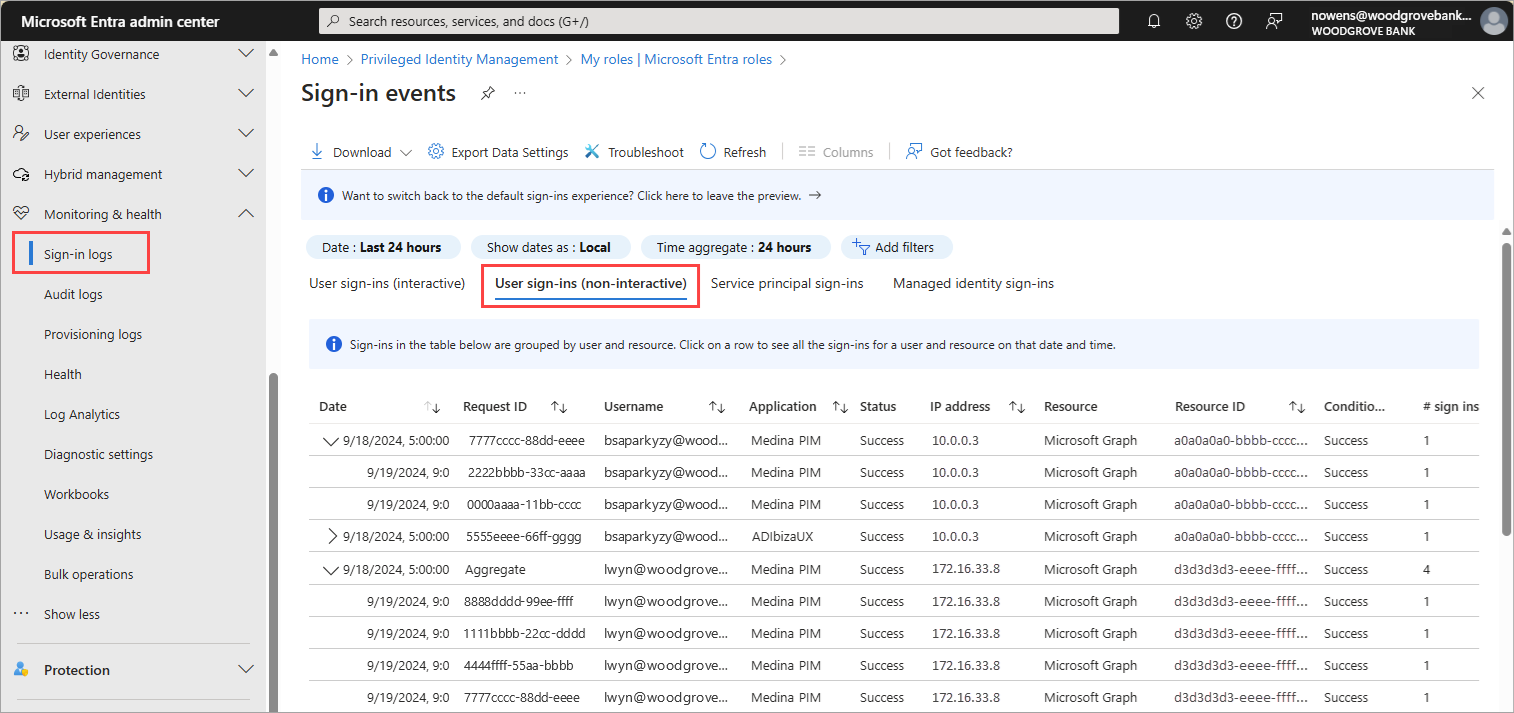
Microsoft Entra admin center → Entra ID → Monitoring & health → Sign-in logs → Add filters → User → enter the UPN → Date → set the UTC incident window
1. Export interactive and non-interactive logs
2. Read one event in a fixed order
Basic info
Result, error code, application, resource, client app, Request ID, Correlation ID, user type and home/resource tenant context.
Location and device
IP, country, device ID, operating system, browser and compliance. Location is an estimate, not proof.
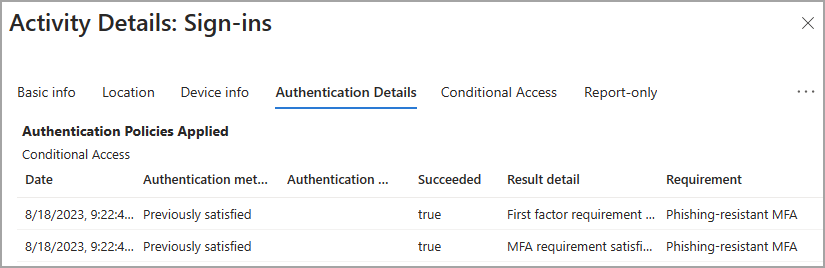
Authentication Details
Methods, sequence, requirement, result and which control satisfied MFA.
Conditional Access
Applied and report-only policies, result and controls. Success does not mean every listed policy applied.
Risk and token context
Risk level, risk detail, sign-in type, session and token identifiers when present.
3. Compare, do not judge one field alone
Optional read-only PowerShell query
Use only when Entra ID P1 or P2 is available and a Graph query improves the investigation. The delegated least-privilege scope is AuditLog.Read.All.
# Read-only example. Requires Entra ID P1/P2 and an authorized reader role.
$ErrorActionPreference = 'Stop'
Import-Module Microsoft.Graph.Reports
$tenantId = [guid](Read-Host 'Tenant ID (GUID)')
if ($tenantId -eq [guid]::Empty) { throw 'A tenant ID is required.' }
$upn = (Read-Host 'Exact user principal name').Trim()
if (-not $upn -or $upn.Contains("'")) { throw 'Enter a valid user principal name.' }
$startInput = Read-Host 'Start, with UTC offset (e.g. 2026-09-15T08:00:00Z)'
$endInput = Read-Host 'End, with UTC offset (e.g. 2026-09-15T10:00:00Z)'
if ($startInput -notmatch 'T.*(Z|[+-][0-9]{2}:[0-9]{2})$' -or $endInput -notmatch 'T.*(Z|[+-][0-9]{2}:[0-9]{2})$') {
  throw 'Both timestamps must include Z or an explicit UTC offset.'
}
$startUtc = [datetimeoffset]::Parse($startInput, [cultureinfo]::InvariantCulture)
$endUtc = [datetimeoffset]::Parse($endInput, [cultureinfo]::InvariantCulture)
if ($endUtc -le $startUtc) { throw 'End must be after start.' }
$start = $startUtc.UtcDateTime.ToString("yyyy-MM-ddTHH:mm:ss.fffffffZ", [cultureinfo]::InvariantCulture)
$end = $endUtc.UtcDateTime.ToString("yyyy-MM-ddTHH:mm:ss.fffffffZ", [cultureinfo]::InvariantCulture)

$connected = $false
try {
  Connect-MgGraph -TenantId $tenantId -ContextScope Process -Scopes 'AuditLog.Read.All'
  $connected = $true
  if ([guid](Get-MgContext).TenantId -ne $tenantId) { throw 'Wrong tenant context.' }
  $filter = "userPrincipalName eq '$upn' and createdDateTime ge $start and createdDateTime lt $end"
  Get-MgAuditLogSignIn -Filter $filter -All |
    Select-Object Id,CreatedDateTime,UserPrincipalName,IsInteractive,
      AppDisplayName,ResourceDisplayName,IpAddress,ClientAppUsed,
      ConditionalAccessStatus,CorrelationId,
      @{Name='ErrorCode';Expression={$_.Status.ErrorCode}}
  # This selected-field view does not preserve the full event. Keep original exports.
} finally {
  if ($connected) { Disconnect-MgGraph }
}
Coverage: this Microsoft Graph v1.0 example is an interactive sign-in overview, not an export of every event type. Preserve separate interactive and non-interactive portal exports. Missing Conditional Access policy detail may reflect permissions. Use explicit UTC offsets, a bounded interval and the correct tenant. This example has been source-reviewed, not executed in a customer tenant.
The Graph endpoint returns the newest events first, supports OData filtering, and has a maximum page size of 1,000. Keep a time filter to avoid timeouts.
Complete when
- Interactive and non-interactive exports are preserved separately.
- The event has been analysed through Basic info, location/device, Authentication Details, Conditional Access and risk.
- The event is compared with the user's baseline and related tenant activity.
- Known limitations and missing data are recorded.
Record one clear outcome
The outcome must explain the evidence and the next action. Do not dismiss risk simply to remove an alert.
These outcomes describe the investigated event and time window. They do not certify that every session or the whole account is safe. Missing coverage stays explicit.
Evidence is not sufficient
The user is unavailable, records have expired or the signals conflict.
Action:Keep the case open. Record the missing evidence, investigation owner and next review time. Decide interim containment from credible activity and business impact; do not mark the account safe or compromised solely to close the ticket.
Recognized and consistent
The user confirms the event and the device, application, authentication and related activity are consistent.
Action:Record the reasoning. If Identity Protection marked a false positive, use the approved safe or dismiss action and explain why.
Expected but failed
The user recognizes the attempt, it failed or was interrupted, and there is no suspicious successful or related activity.
Action:Use Sign-in diagnostic, correct MFA, Conditional Access, client or application configuration, then validate a clean sign-in.
Likely account compromise
The user denies a successful event, a suspicious token or session exists, or the evidence indicates attacker access.
Action:Escalate now and use the parent Compromised Account SOP for proportionate containment and cleanup. Mark compromise as confirmed only when the evidence supports that classification.
More than one identity
A related suspicious pattern affects multiple users, such as a password spray or known malicious infrastructure. A shared IP or application alone can be normal and is not enough.
Action:Expand the investigation across targeted identities. Contain accounts with confirmed or credible evidence of compromise; failed spray attempts alone do not justify disabling every targeted user.
What to do
Complete when
- One outcome, confidence and reason are recorded.
- Risk state is accurate and not merely cleared.
- The next support or incident record is linked.
Make the next event easier to prevent and explain
Turn the investigation gap into a small, owned improvement. Prefer controls that reduce attack opportunity and preserve better evidence.
Authentication
Deploy phishing-resistant MFA for administrators and high-value users. Keep recovery methods controlled.
Conditional Access
Block legacy authentication. Test changes in report-only. With P2, keep user risk and sign-in risk in separate policies.
Retention
Export Entra logs through diagnostic settings before built-in retention expires. Confirm ingestion and ownership.
Detection
Alert on high-risk users, suspicious applications, legacy authentication, unusual tokens and patterns across users.
What to do
Complete when
- Every gap has an owner and due date.
- Policy changes have a test and rollback plan.
- Logging and alert delivery have been validated.
Preserve a decision another admin can reproduce
A screenshot is helpful context, but the original export, identifiers, filters and reasoning are the evidence that make the decision repeatable.
What to preserve
Copyable evidence note
CASE / ALERT ID:
TENANT:
USER PRINCIPAL NAME:
SIGNAL AND SOURCE:
UTC WINDOW AND FILTERS:
EVENT UTC / RESULT / ERROR CODE:
REQUEST ID / CORRELATION ID:
APPLICATION / RESOURCE / CLIENT APP:
IP / LOCATION / DEVICE / USER AGENT:
AUTHENTICATION DETAILS:
CONDITIONAL ACCESS:
RISK DETAILS:
USER CONFIRMATION AND CHANNEL:
RELATED TENANT ACTIVITY:
ORIGINAL EXPORT FILENAMES:
ORIGINAL EXPORT SHA-256 HASHES:
KNOWN DATA OR LICENSE LIMITATIONS:
DECISION: SAFE | TROUBLESHOOTING | UNRESOLVED | SUSPICIOUS | BROADER ATTACK
CONFIDENCE AND REASON:
NEXT RECORD / OWNER / UTC TIME:
For a JSON export, the local evidence inspector can hash the file and summarize supplied records without uploading it. Counts are not a safety verdict. Keep this detailed note internally and redact identities before an external enquiry.
Optional export integrity command
Get-FileHash -LiteralPath "<original-export.csv>" -Algorithm SHA256Record the filename, algorithm and hash in the case. Recalculate it later to detect any change to the original export.
Complete when
- An independent administrator can find the same event.
- Original exports and their filters are preserved.
- The conclusion cites evidence and limitations.
- The next record is linked when work continues elsewhere.
Keep the decision owned
One person owns the investigation and conclusion. Specialist owners join only where their systems or authority are needed.
Investigation owner
Preserves the event, runs the checklist, records the decision and links the next record.
Identity owner
Explains authentication, Conditional Access, risk, roles and account state.
Application owner
Confirms expected application, resource, client and access behavior.
Security or incident owner
Takes control when compromise, multiple users, token theft or broader attacker activity is suspected.
Endpoint owner
Investigates the device when malware, token theft, unmanaged access or unusual user agent evidence exists.
Business, privacy or legal owner
Handles regulated data, fraud, high-impact users and external notification decisions.
Escalate immediately when
Closure gate
Complete when
- The investigation owner approves the conclusion.
- Every escalation and follow-up has an owner.
- If compromise is suspected, the parent SOP remains open until its closure gate is satisfied.